

A full house and a big team, and no chaos
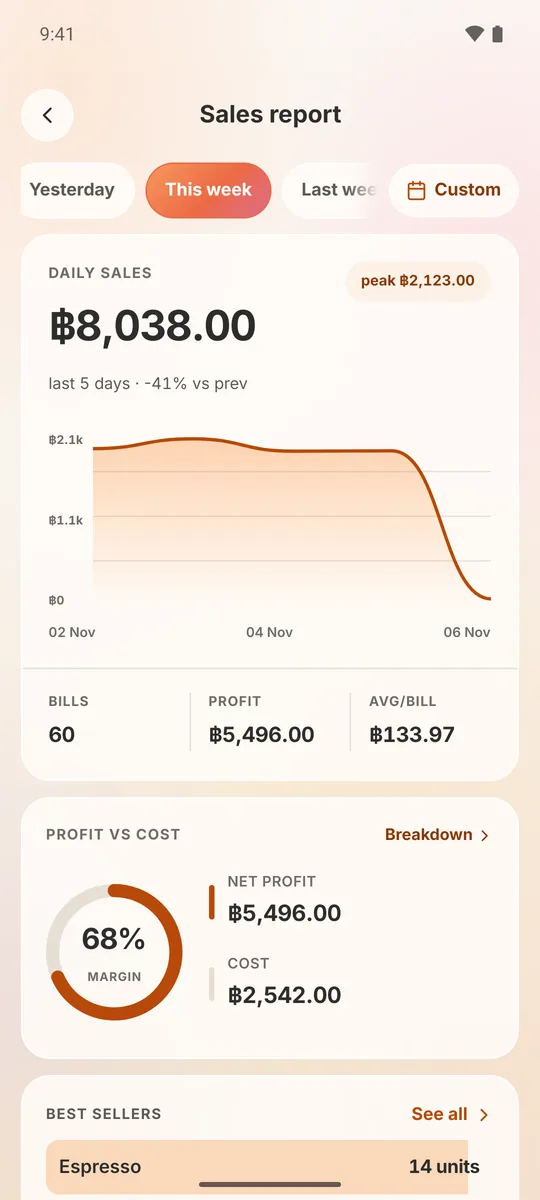
Park bills in a queue, open and close shifts with a cash count, and see what each staff member sold, all on a phone or tablet.
Six things restaurants use every day
Park bills in a queue
Open a bill while customers eat and take payment later. Open bills don’t get lost.
Opening and closing shifts
Count the cash when a shift closes and compare it with the system, so you know at once if it is short or over.
Menu options
Less spicy, no vegetables, add an egg: set them up as options, each with its own price.
Staff permissions and reports
Decide who can do what, and see each staff member’s sales.
Tax invoices and e-Tax
Issue tax invoices to customers, and e-Tax files for your accountant.
Expenses and real profit
Record ingredient costs and shop expenses, then see the profit that is really left.
Less spicy or an extra egg? Make them options
Give any option that costs extra its price, and staff tap what the customer orders.
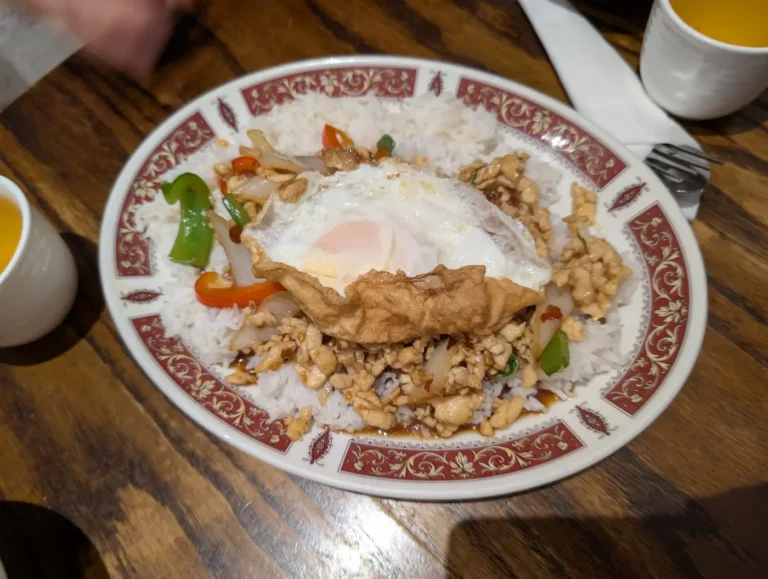
Stir-fried basil chicken on rice with a fried egg 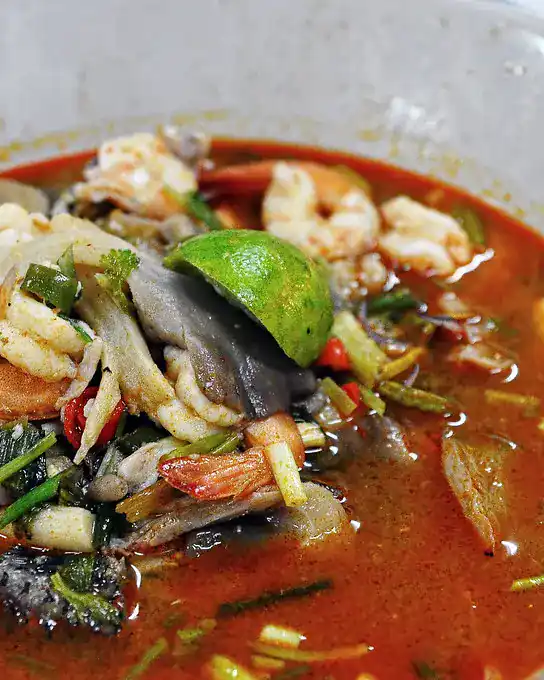 Creamy brothExtra prawns +40
Tom yum goong 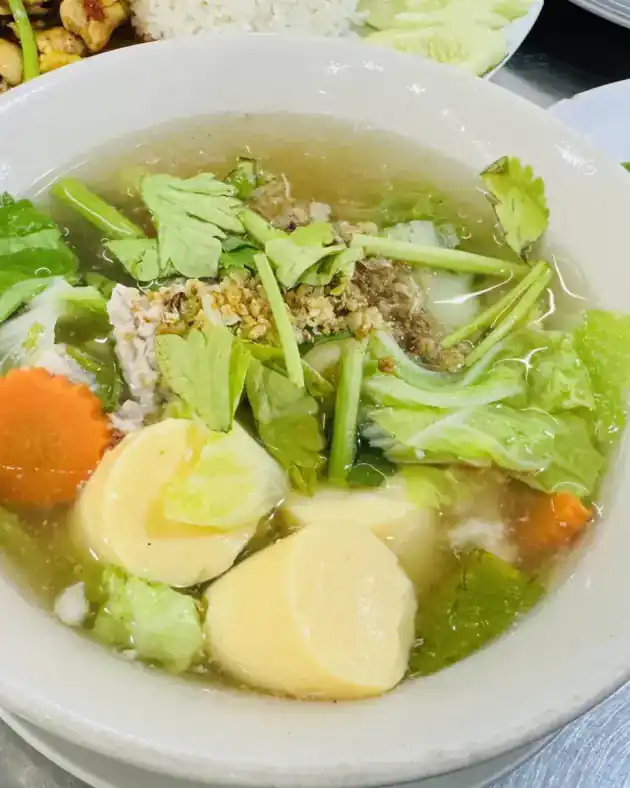 No corianderAdd minced pork +20
Clear soup

A day in a restaurant
Pick a time of day to see where the app helps
Full house, open bills on several tables
Park each table’s bill in the queue, take the next order right away, and take payment when customers get up.


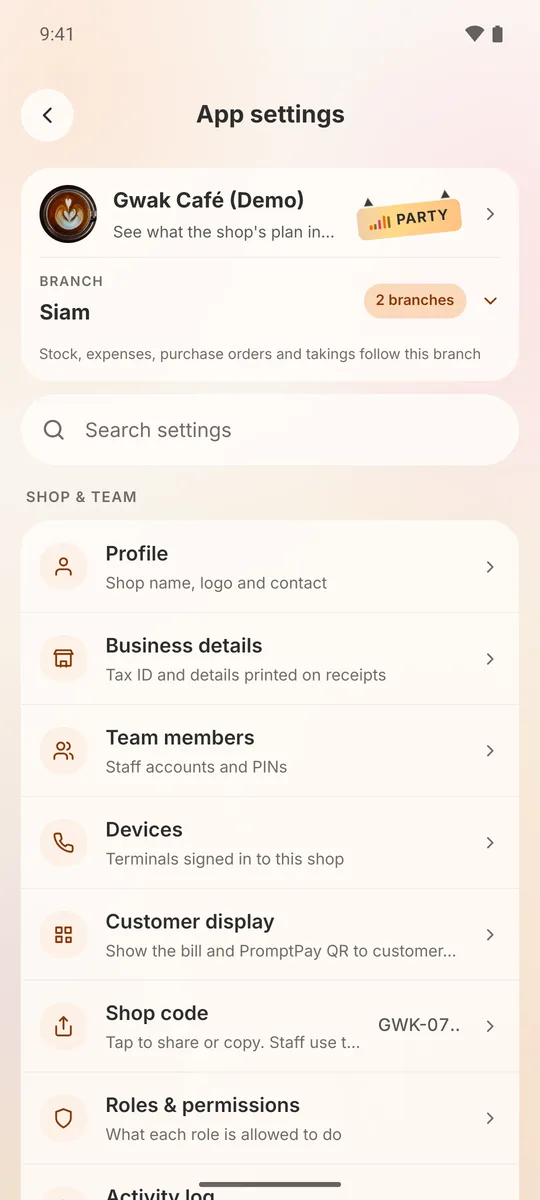

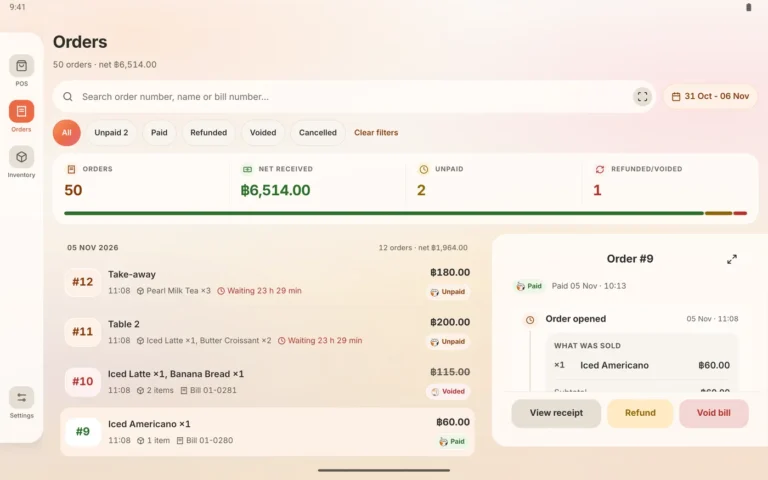
However busy the kitchen, no bill gets lost
Keep a tablet open at the counter to see every order of the day, which tables are still unpaid, and tap to take payment.

Plans that suit a restaurant
Play or Party
Play has 10 staff in one branch. For permissions, approvals or more than one branch, move up to Party (3 branches and 30 staff).
Search 22 common questions across 5 pages
What do you want to know? Just type your question
See all 22 questionsGrouped by page. Pick a page, then tap a question to see the answer.
Plans and prices
See this pageQ1What add-ons can I buy?
Party can add branches, products, members, owners, managers and staff, and photo storage. Play can add customer displays, 2 screens or unlimited. Buy them one pack at a time, and add or remove them each billing cycle in the back office.
Q2How do I pay?
Scan the PromptPay QR in the back office and attach the transfer slip. The plan opens as soon as the payment is confirmed.
Q3Do I need a card for the free trial?
No. A new shop gets Party free for 30 days as soon as it is created. Nothing is charged automatically. We don’t take cards; pay with PromptPay or transfer when you choose a plan yourself.
Q4What happens after 30 days?
If you haven’t picked a plan, the shop moves to Go and you keep using it free. To keep Play or Party, choose and pay in the back office whenever you like.
Q5Can I change or cancel my plan?
Upgrades start at once and you pay only the difference for the days left in the cycle. A downgrade or cancellation takes effect when the paid cycle ends; you keep everything until the last day, then move to Go.
Q6Which devices does it run on?
The app runs on iPhone and iPad, for selling and reports. The web back office is where you manage your plan and pay.
Cafés and drink shops
See this pageQ1Can I price a large cup or an extra shot separately?
Yes. Set up option groups with a price for each option, and choose whether the receipt lists each option’s price or folds them into one line.
Q2Does it work with receipt printers?
Yes. Connect a supported printer in printer settings, or send the receipt to the customer on LINE.
Q3Do I need the internet?
Yes. Every bill is saved straight to the system, so the owner sees the latest sales from anywhere. Shop Wi-Fi or mobile data both work.
Q4Can I use a coffee shop POS app on an iPad?
Yes. Gwak Gwak works on both iPhone and iPad. Download it from the App Store.
Restaurant
Q1Can several staff use it at once?
Yes. Play has 10 staff, Party has 30, and you can buy more in the back office.
Q2Can I have several branches?
Yes, on Party: 3 branches, stock transfers between branches, and more branches as an add-on.
Q3Do I need the internet?
Yes. Every bill is saved straight away, so the owner sees the latest sales even away from the shop.
Q4Does a restaurant POS need a POS terminal?
No. Use the iPhone or iPad you already have. To print receipts, connect a printer over Bluetooth or LAN.
Retail and corner shops
See this pageQ1I have lots of products. Do I have to key them all in myself?
Our team can enter your product data when your shop meets the service conditions. Ask us on LINE @gwakgwak.
Q2Can I use it without a barcode scanner?
Yes. Use the camera on your phone or tablet to scan barcodes.
Q3Do I need the internet?
Yes. Stock and sales update in the system with every bill.
Q4Can the POS make its own barcode labels?
Yes, on Play and Party. Products without a barcode get the shop’s own label, printed on a label printer connected over Bluetooth or LAN.
Market stalls, street stalls and food carts
See this pageQ1Is it really free?
Go is free for good, with no card. New shops also get to try Party free for 30 days first.
Q2What about a weak signal at the market?
The app needs the internet, and mobile data is enough. Every bill is saved straight away.
Q3What if I have more than 10 products?
Move to Play any time in the back office, for 1,000 products.
Q4How does a phone POS take transfers?
The app makes a PromptPay QR for the bill amount for customers to scan and pay. It works on the free Go plan too, with no typing in the amount yourself.
Other kinds of shop
Read before you choose How to choose a POS: a 10-point checklist Tax invoices and e-Tax
Screenshots from the Gwak Gwak app with sample shop data. Photos: Tom yum goong (Mixed Seafood) by jh_tan84 (CC BY 2.0) via Flickr. The basil chicken with fried egg and the clear soup photos are public domain (CC0). Photos of people in the dining room and kitchen were made with AI.