
Close the day with drawer cash that matches the sales
Open a shift in the morning and count the cash when you close. The app tells you how much cash there should be, and how much is short or over. Every step points to a real screen, and you can tick each one off as you go.
- Good for
- CaféRestaurantRetailMarket
- Plan
- Every plan, Go included
- Features used
- Shifts and cashCounting cash at closeSales report
Stages in this playbook
10 things to do
Done 0 of 10 steps0% done, steps left: 10)
-
Stage 1Done 0/0
One-time setup
-
In Settings, choose Shift. With it on, the till stays locked until a shift is open, so every bill lands in a shift. Products, the queue, reports and settings still open as usual.

-
-
Stage 2Done 0/0
Before opening
-
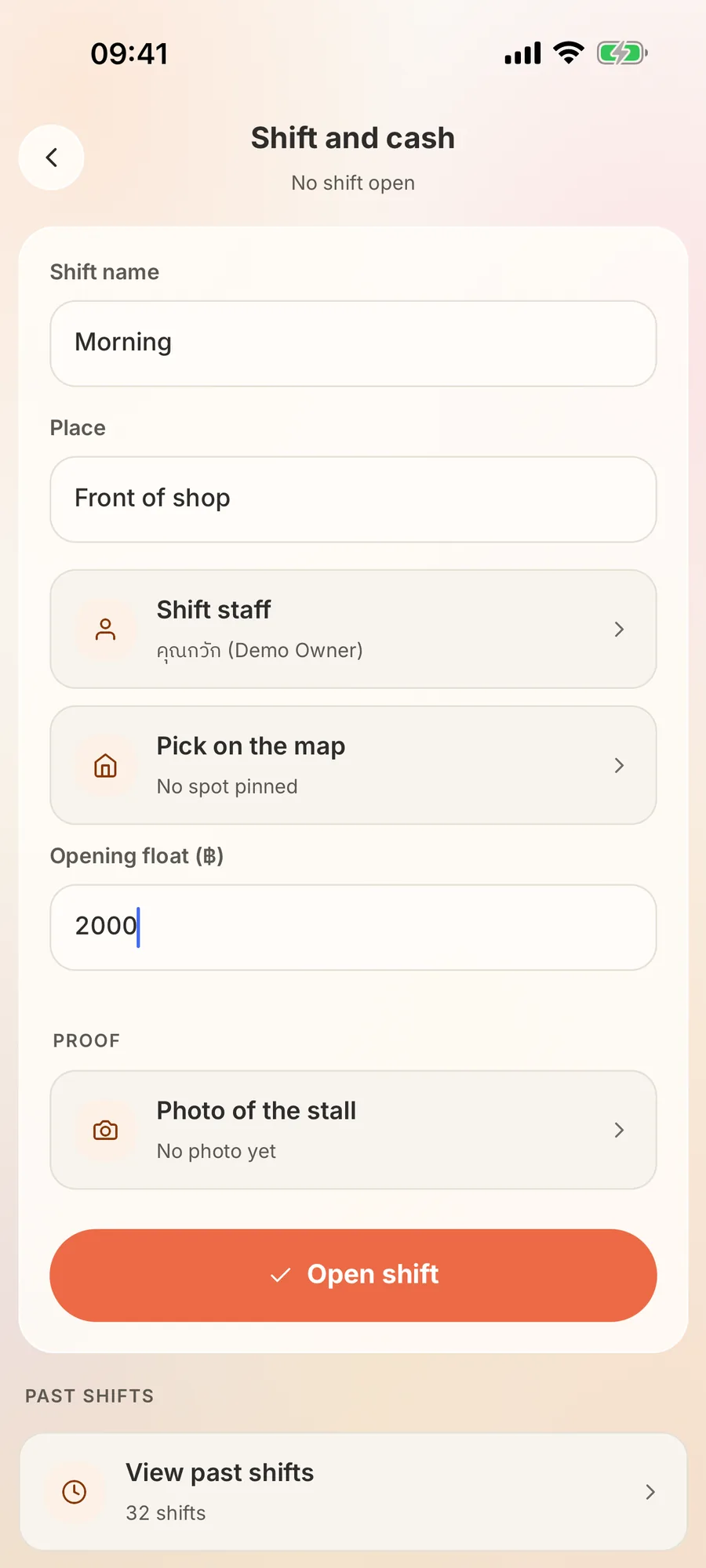
Count the change in the drawer first and enter it as the opening float. Give the shift a name and a place, and take a photo of the shopfront if you like. Anyone in the shop can open a shift.
-
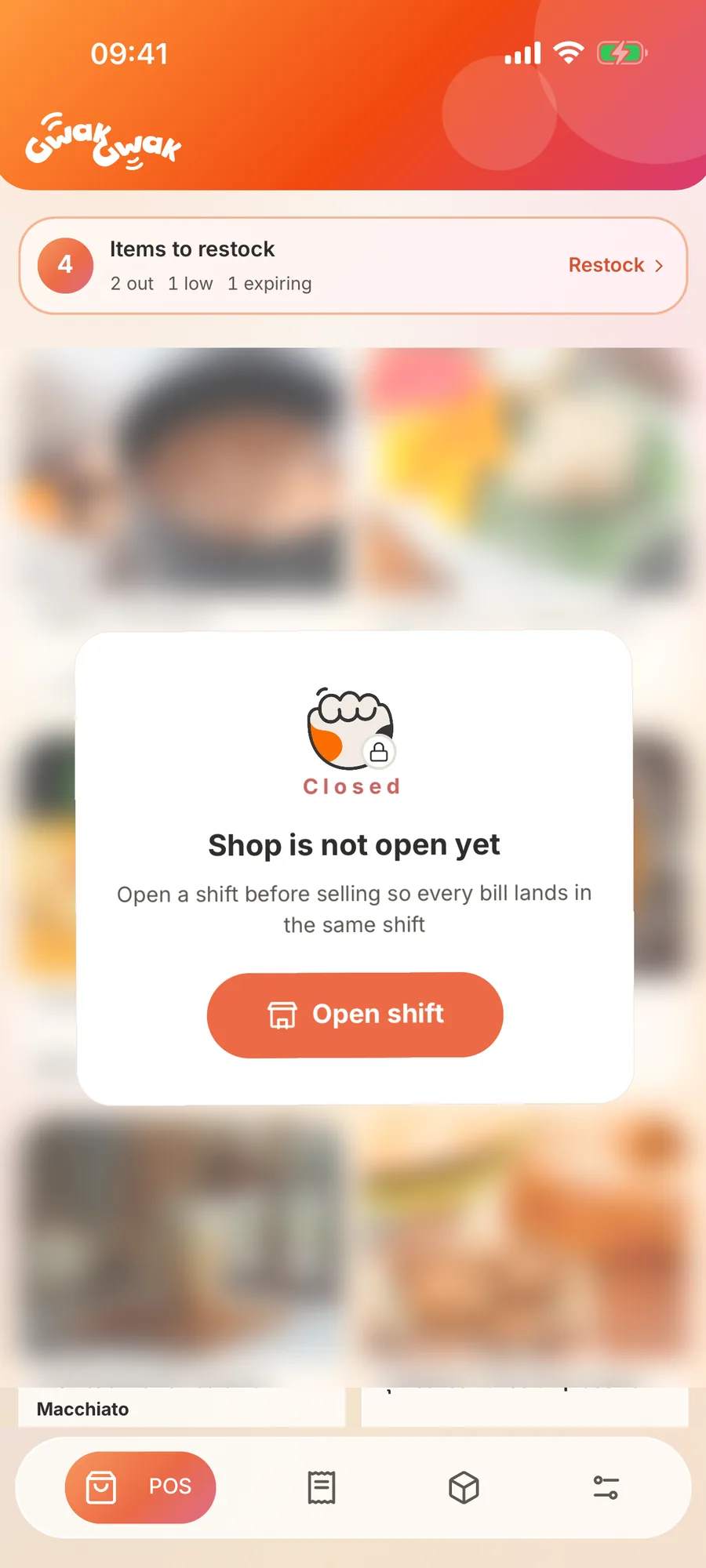
With Require an open shift on, the till shows Shop is not open yet. Tap Open shift right there.
-
-
Stage 3Done 0/0
At closing
-
While any order is still unpaid, the app won’t let you close the shift. Collect or cancel them all first, so nothing from the day is left hanging.
-
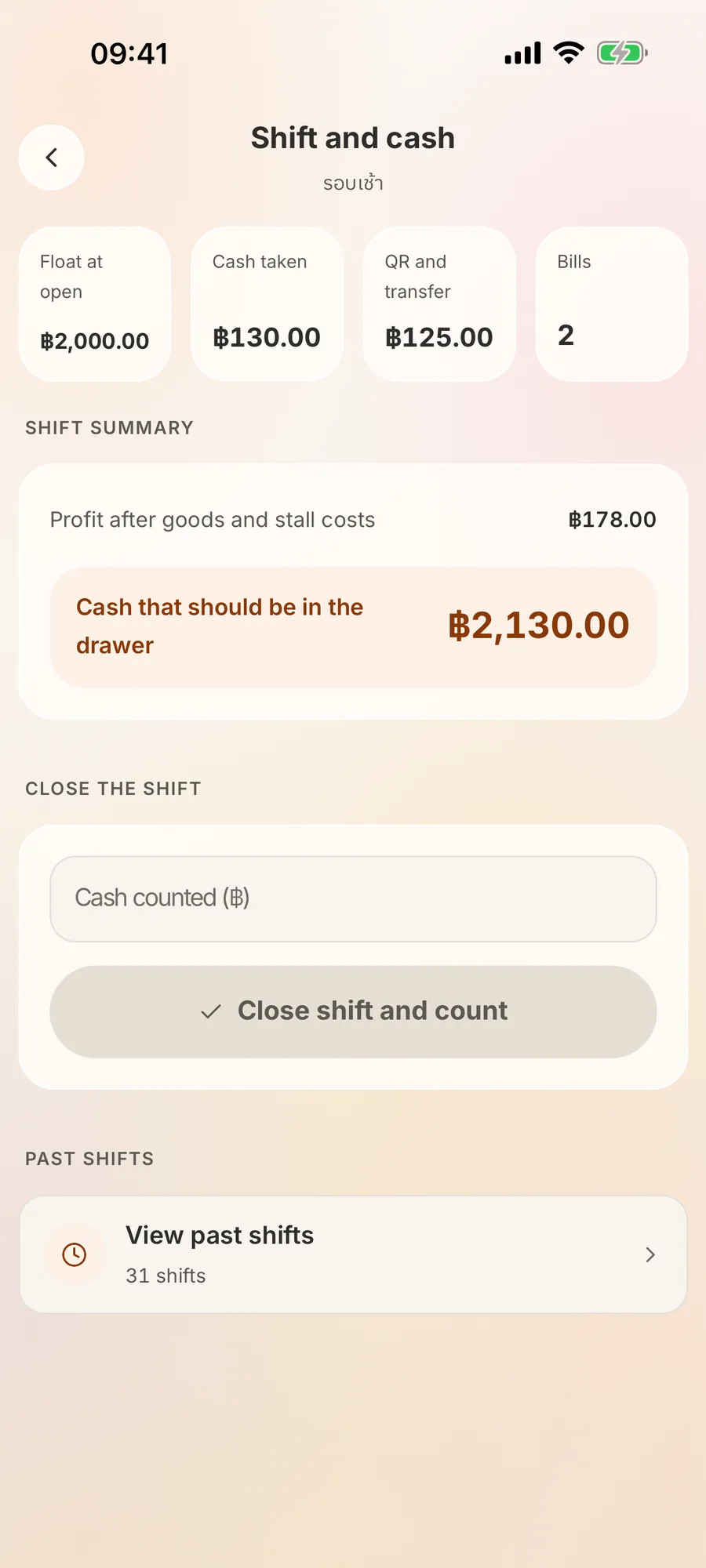
The app works it out from the opening float plus cash taken in the shift, minus expenses paid in cash and cash refunded to customers. QR and transfer payments are kept apart and not counted in the drawer.
-
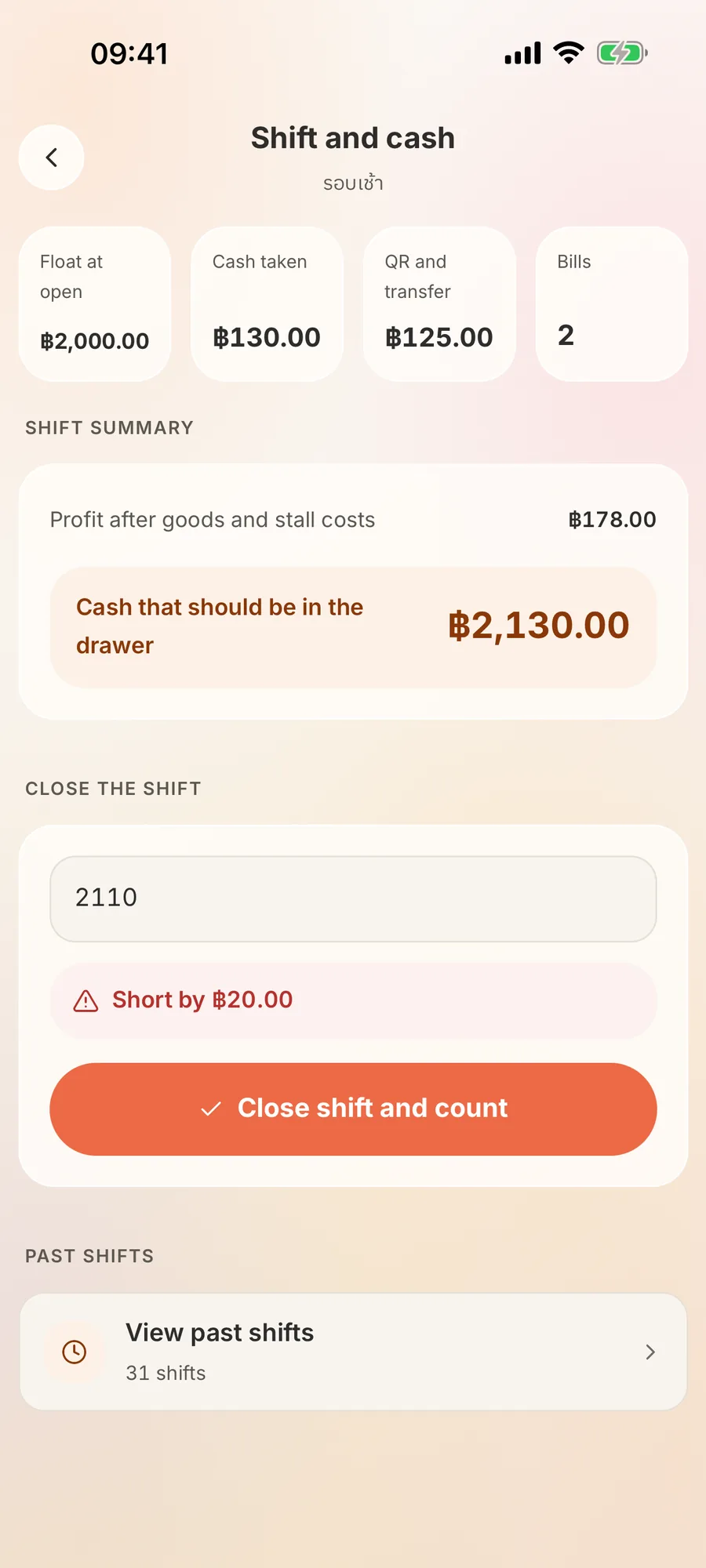
Count all the cash in the drawer, including the opening float, and enter the amount counted. The app shows at once whether it matches exactly, or how much is short or over.
-
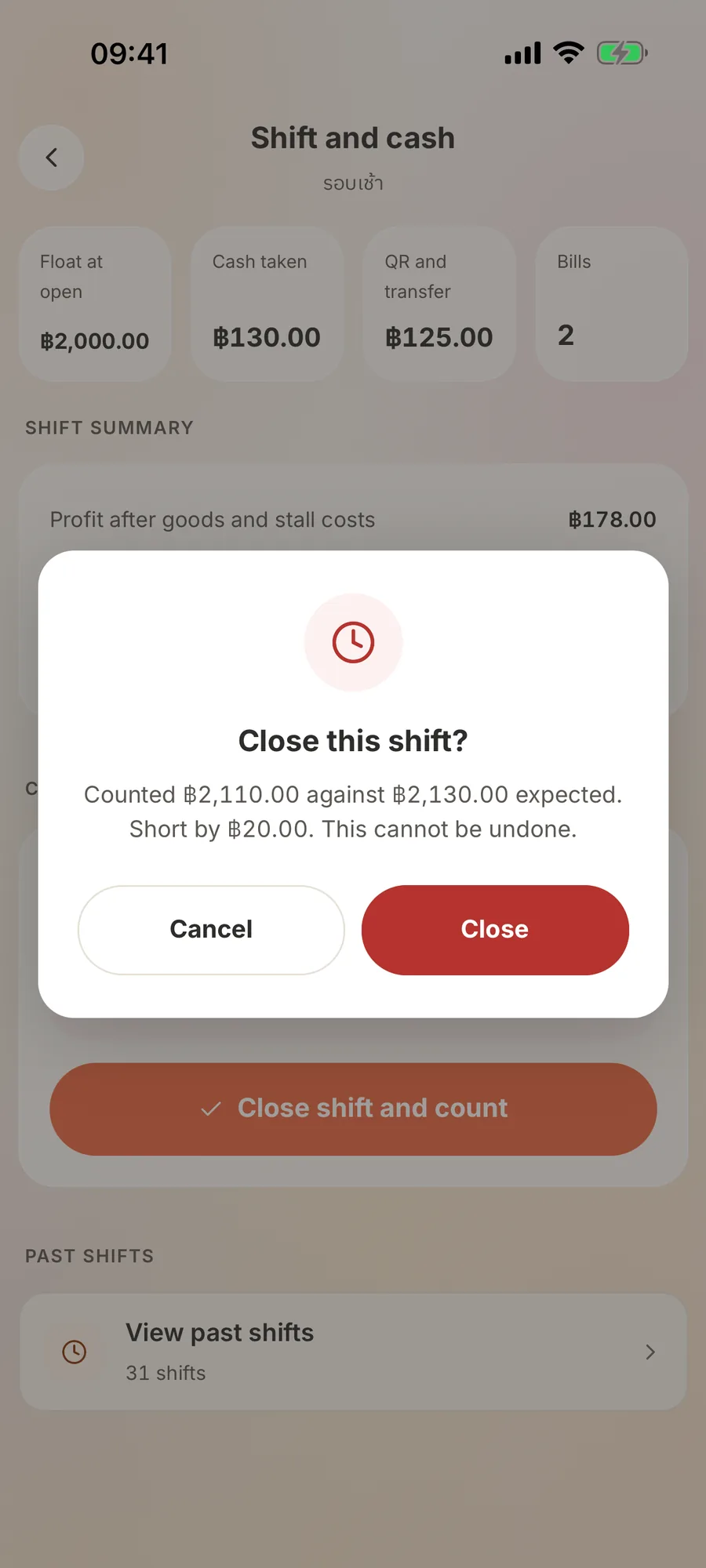
Only a manager or above can close a shift. The app asks you to confirm, showing the amount counted against what is expected. Once closed it cannot be changed, so if the figures don’t match, count again before you tap.
-
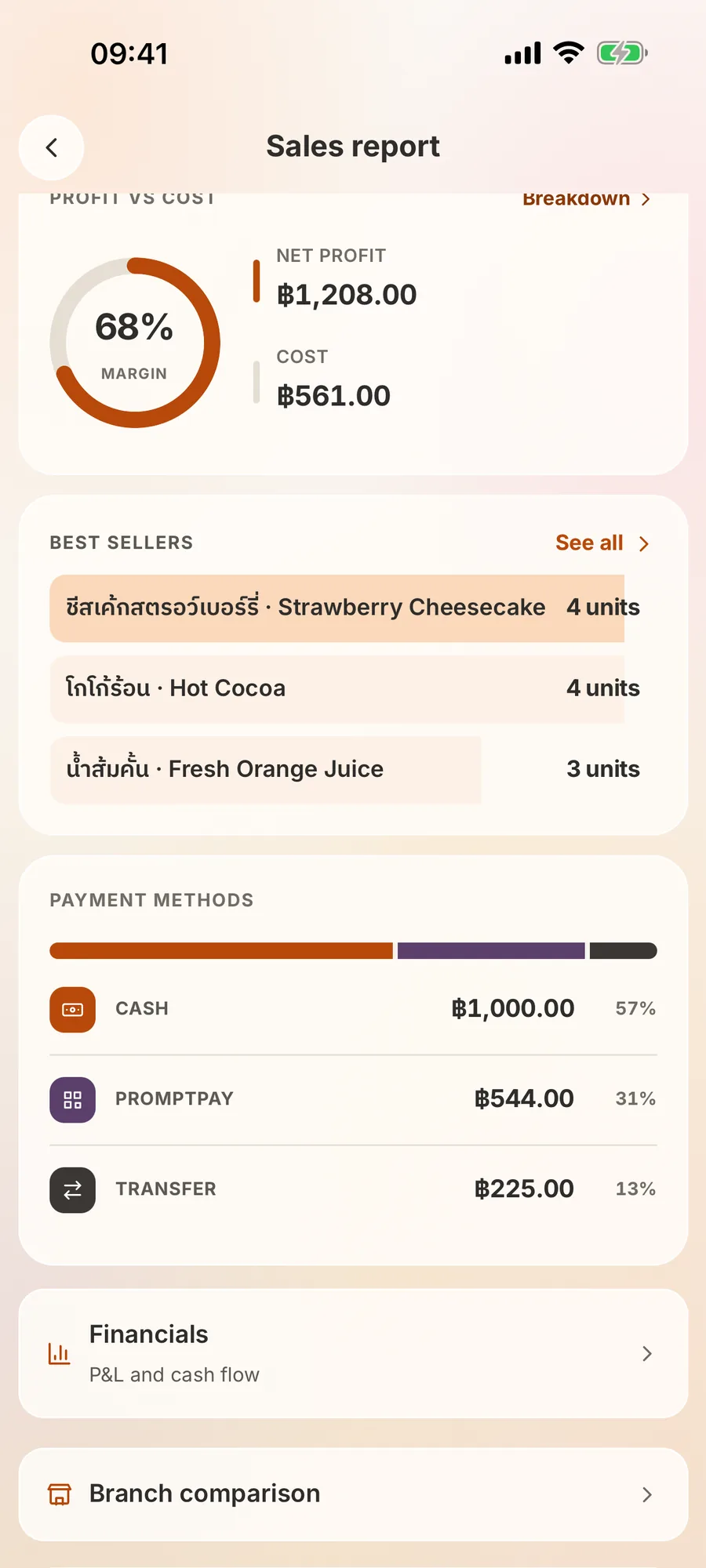
Open the Sales report and choose Today. The Payment methods card splits out cash, PromptPay and transfer. You can check the PromptPay and transfer totals against your shop’s banking app.
-
-
Stage 4Done 0/0
Every week
-
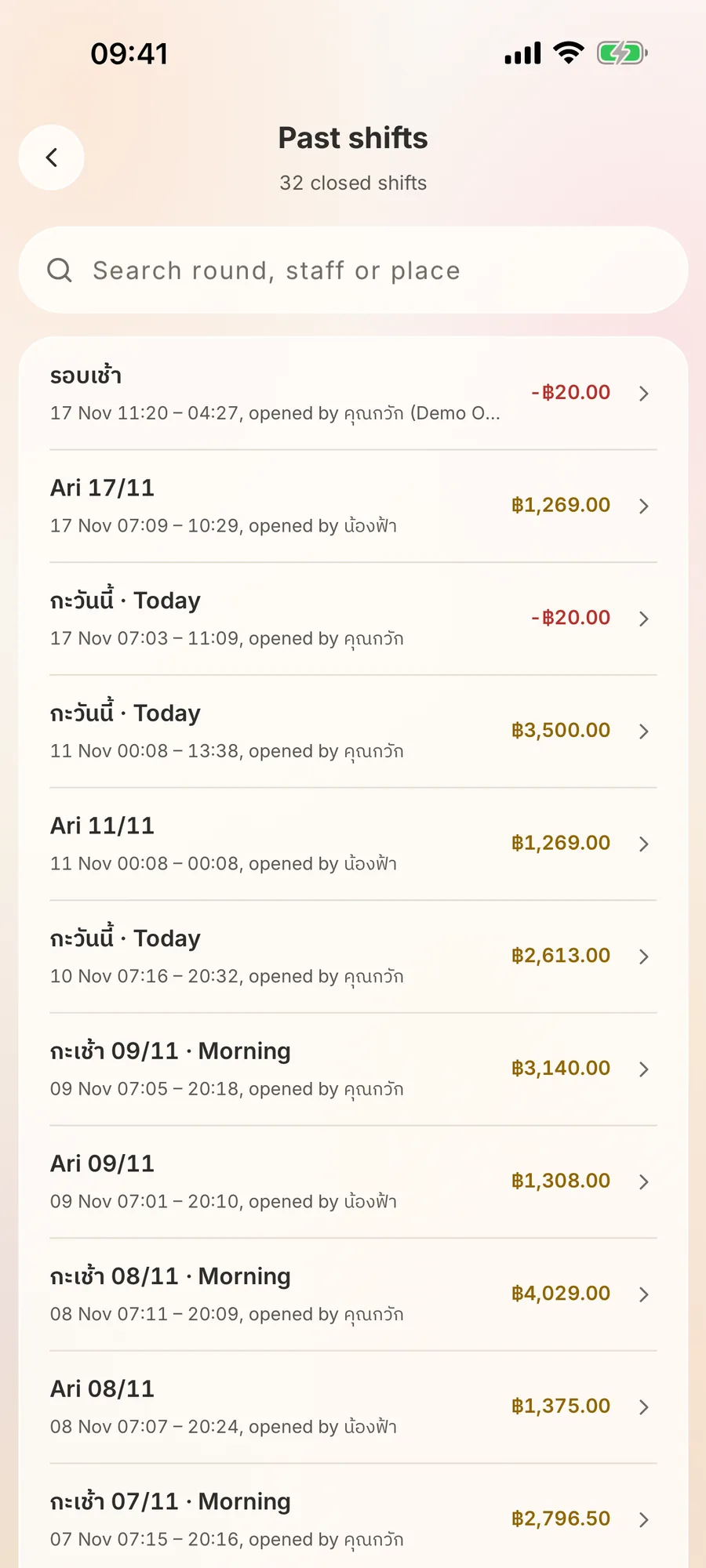
Every closed shift is in Past shifts. Search by shift name, who opened or closed it, or place.
-
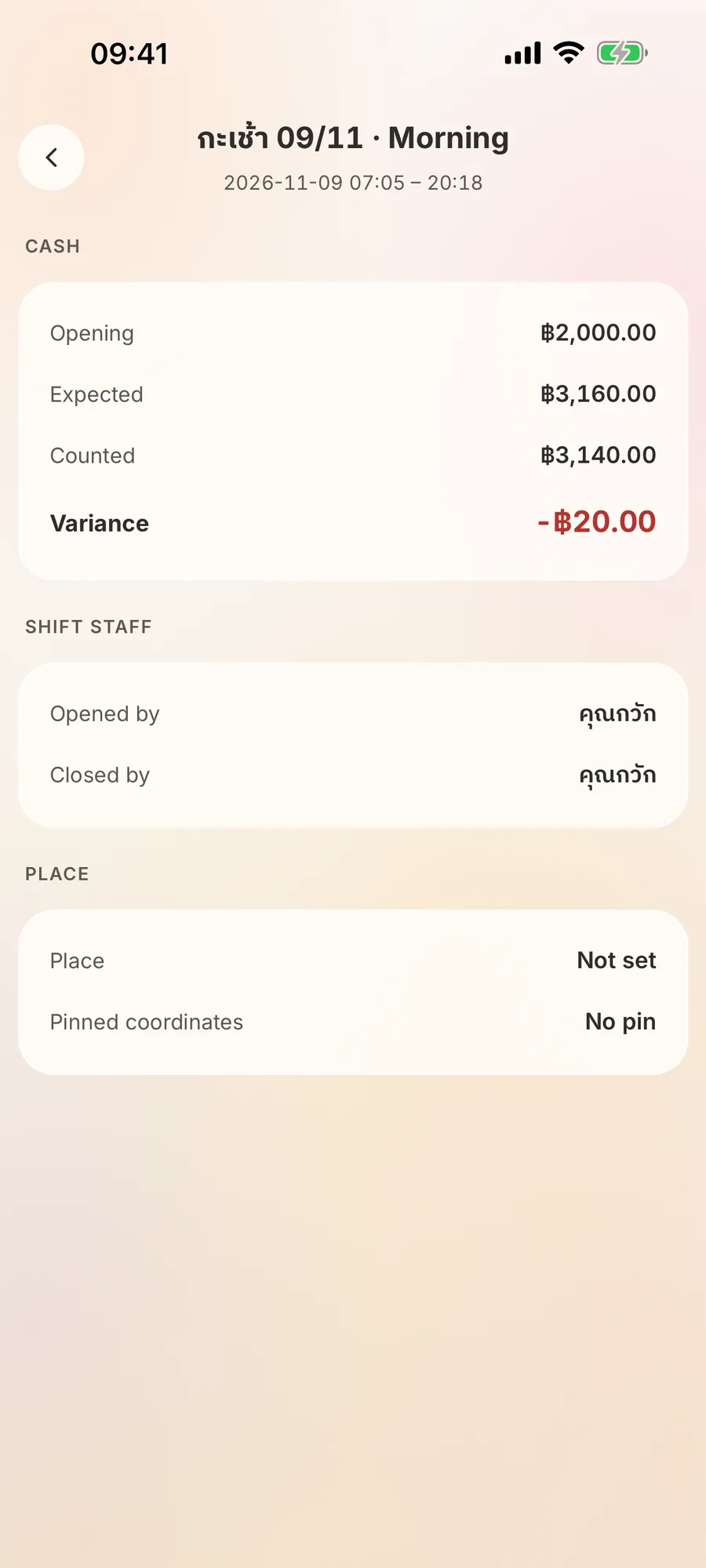
Each shift shows the opening float, expected, counted, variance, and who opened and closed it. If cash keeps coming up short at the same time of day or with the same person, that is where to look.
-


Which shops should start this playbook
If your shop often runs into any of the problems on the right, work through this one stage at a time, starting with the one-time setup.
- The cash count at the end of the day doesn’t match the sales
- You can’t tell which day the cash started coming up short
- Cash and transfers get so mixed up you can’t tell them apart
- When someone else minds the shop, nobody knows how much cash there should be
Where to see the results in the app
- Shifts and cashThe cash that should be in the drawer for the open shift
- Past shiftsThe variance for every shift, and who opened and closed it
- Sales reportThe day’s sales by payment method
Common mistakes
- Not entering an opening floatThe expected amount comes up short by the float, so every count looks like extra cash.
- Recording a transfer as cashThe drawer will look short even though the money is in the bank account.
- Leaving unpaid orders openYou can’t close the shift until they are collected or cancelled.
Read more
Start the first step in the app today
New shops get Party free for 30 days, with no card needed. After that, the shop moves to Go on its own.
Stuck on a step? Message the team on LINE.