
Selling alone at a market One phone is enough
Set the app up for your stall once. While selling, scan or tap items and take QR or cash. After packing up, check the day’s sales and what sold best. Every step points to a real screen in the app. Tick each one off as you go.
- Good for
- Market
- Plan
- Every plan, Go included
- Features used
- PromptPay QRCamera scanningDaily report
Stages in this playbook
10 things to do
Done 0 of 10 steps0% done, steps left: 10)
-
Stage 1Done 0/0
One-time setup
-
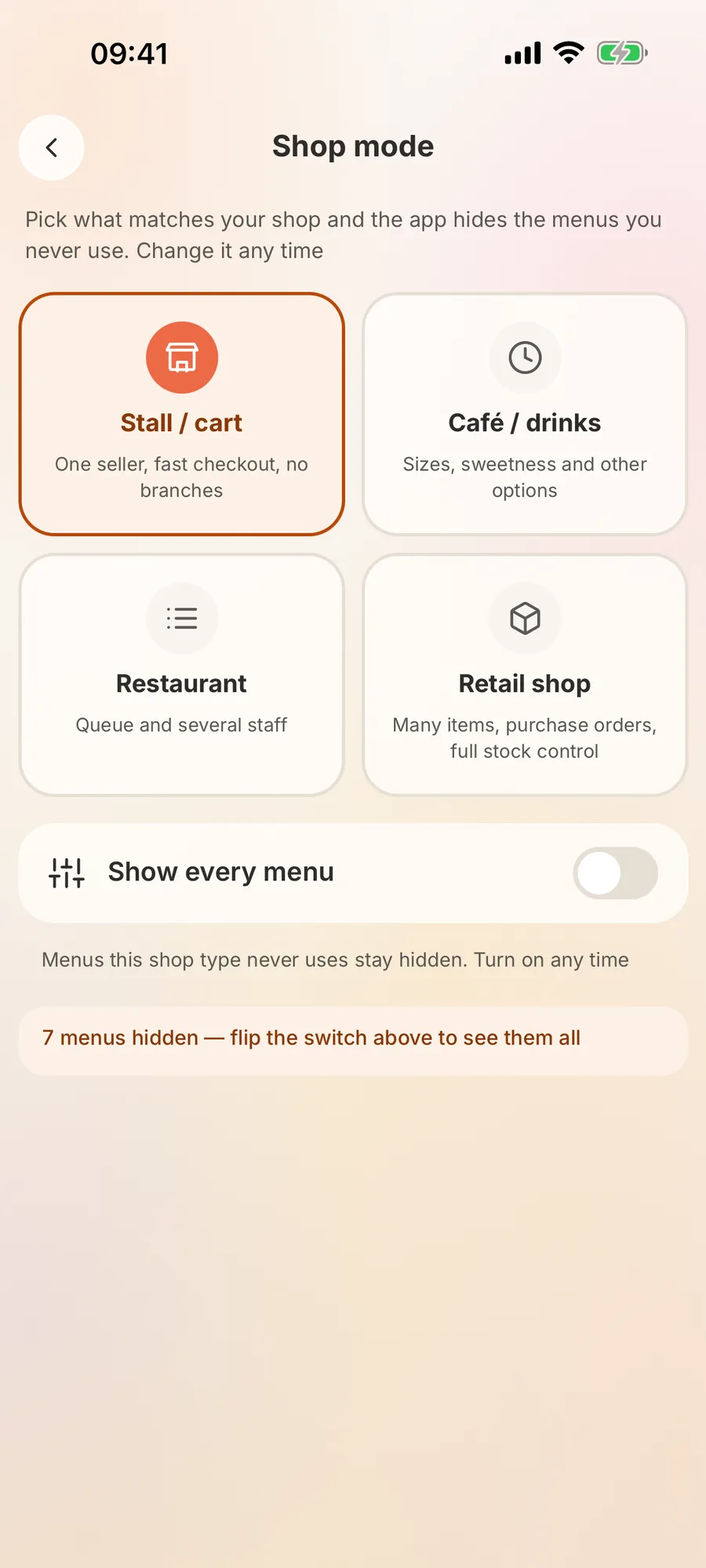
In Settings, choose Shop mode and tap Stall / cart. The app hides 7 menus a stall does not use, such as warehouse, branches and staff roles, so the screen keeps only what you need to sell. Turn on Show every menu when you want to see them all. You can change the mode any time.
-
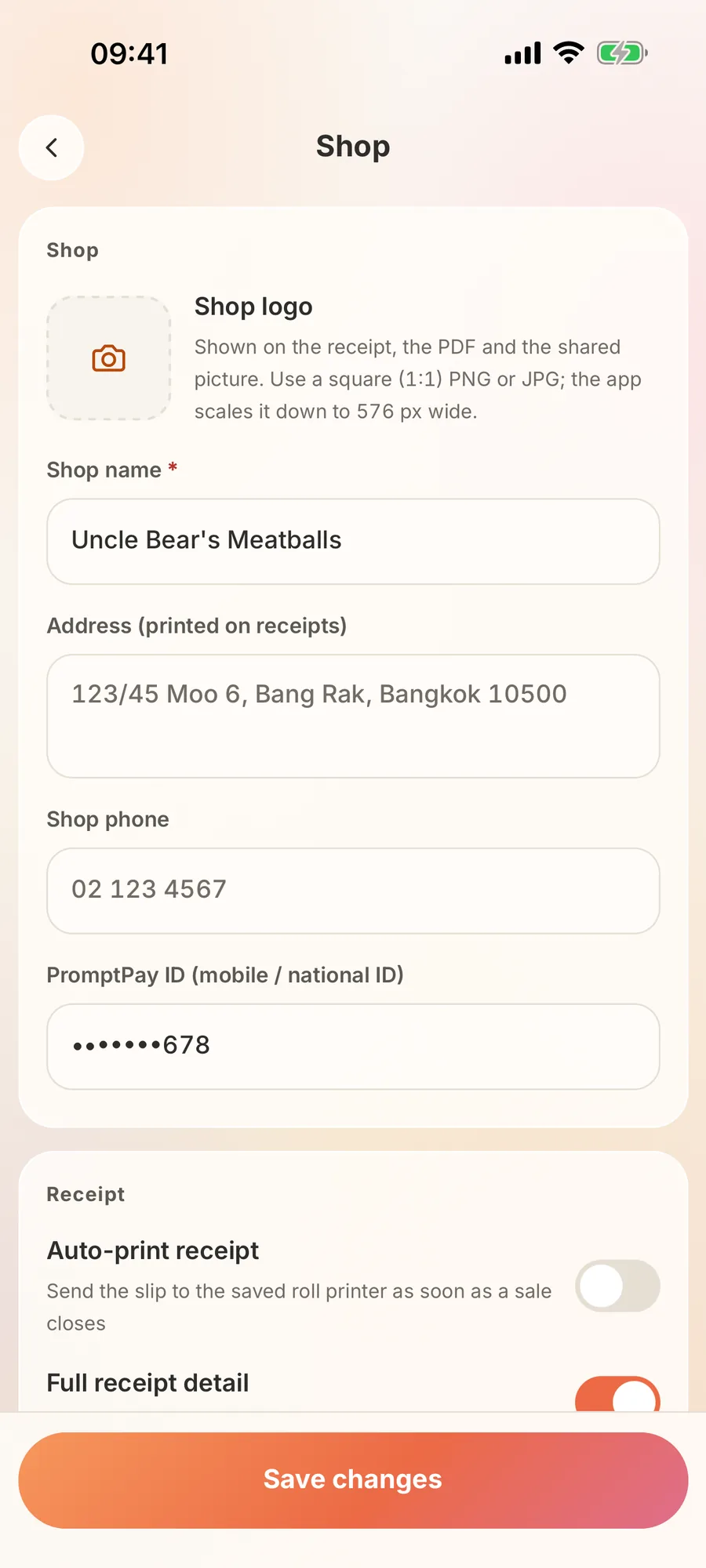
In Settings, choose Business details. Enter the mobile number or national ID number that links PromptPay to the shop’s account, then save. The QR shown at checkout sends the money into that account.
-
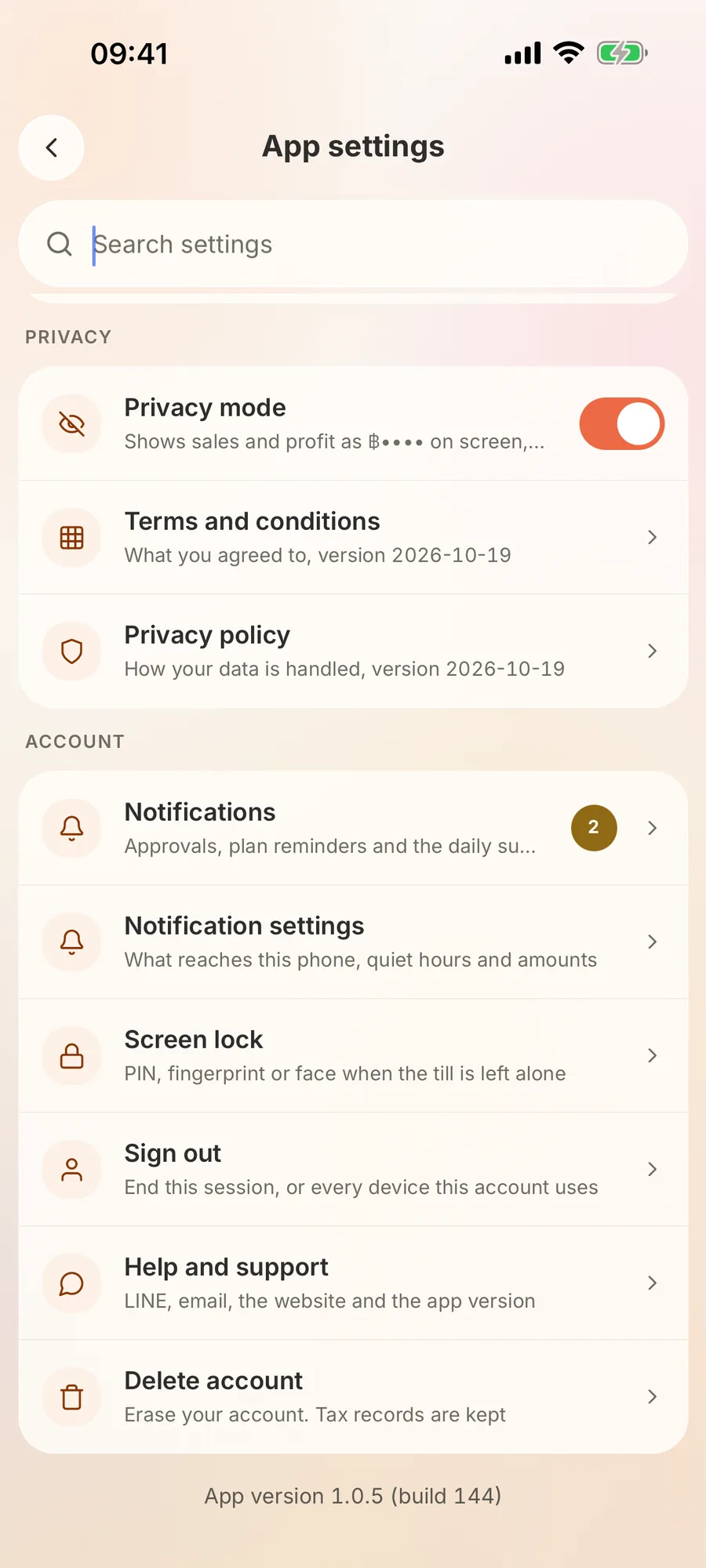
In Settings, under Privacy, turn on Privacy mode. Sales and profit on screen show as ฿••••, so customers at the stall cannot see what the shop earns. Prices at checkout and on receipts stay real.
-
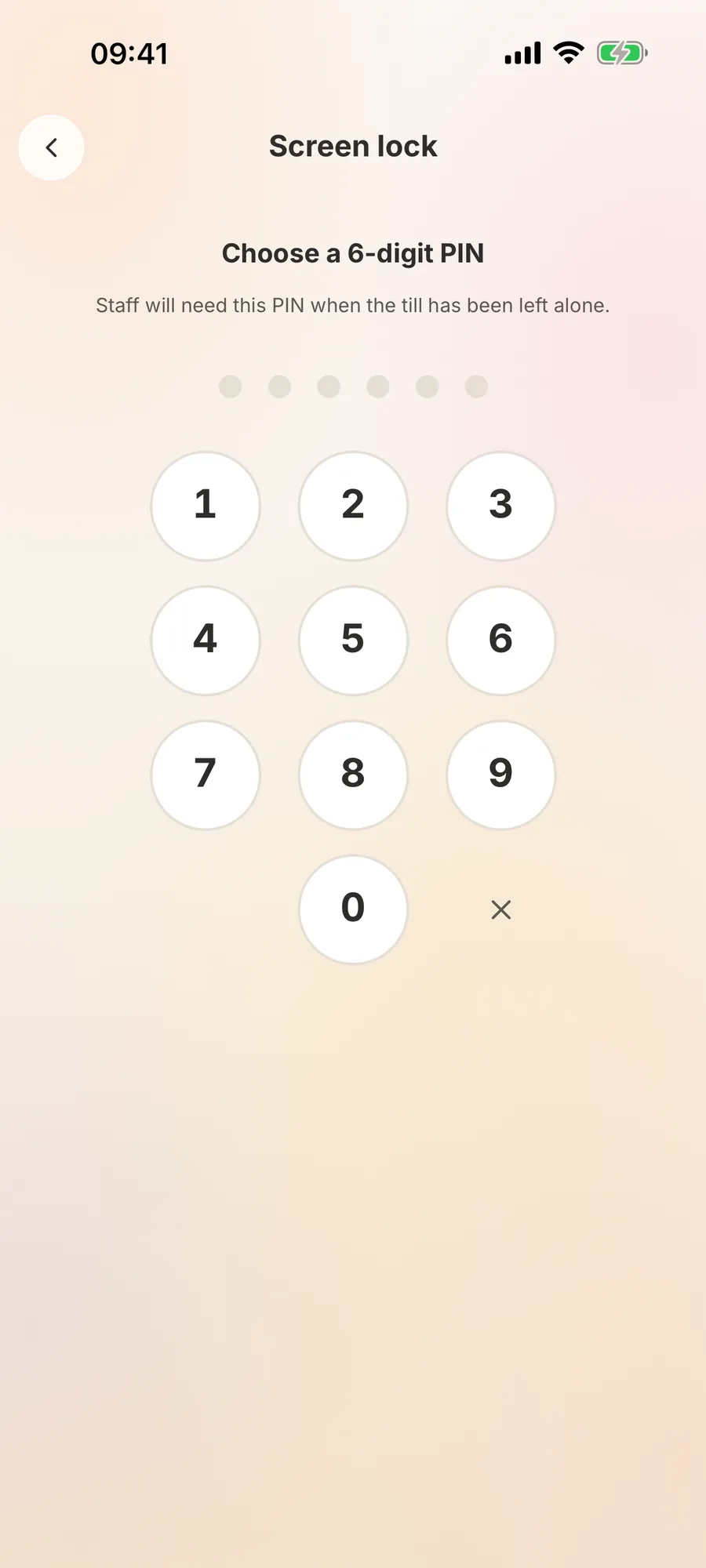
In Settings, choose Screen lock and set a 6-digit PIN. When you switch to another app or turn the screen off and come back, the app asks for the PIN first. If your phone has a fingerprint or face set up, you can unlock with that instead of typing the PIN.
-
-
Stage 2Done 0/0
While selling
-
Tap the scan icon next to the product search box and point the camera at the barcode. Items with a barcode go straight onto the bill. For items without one, tap them on the POS screen or search by name.

-
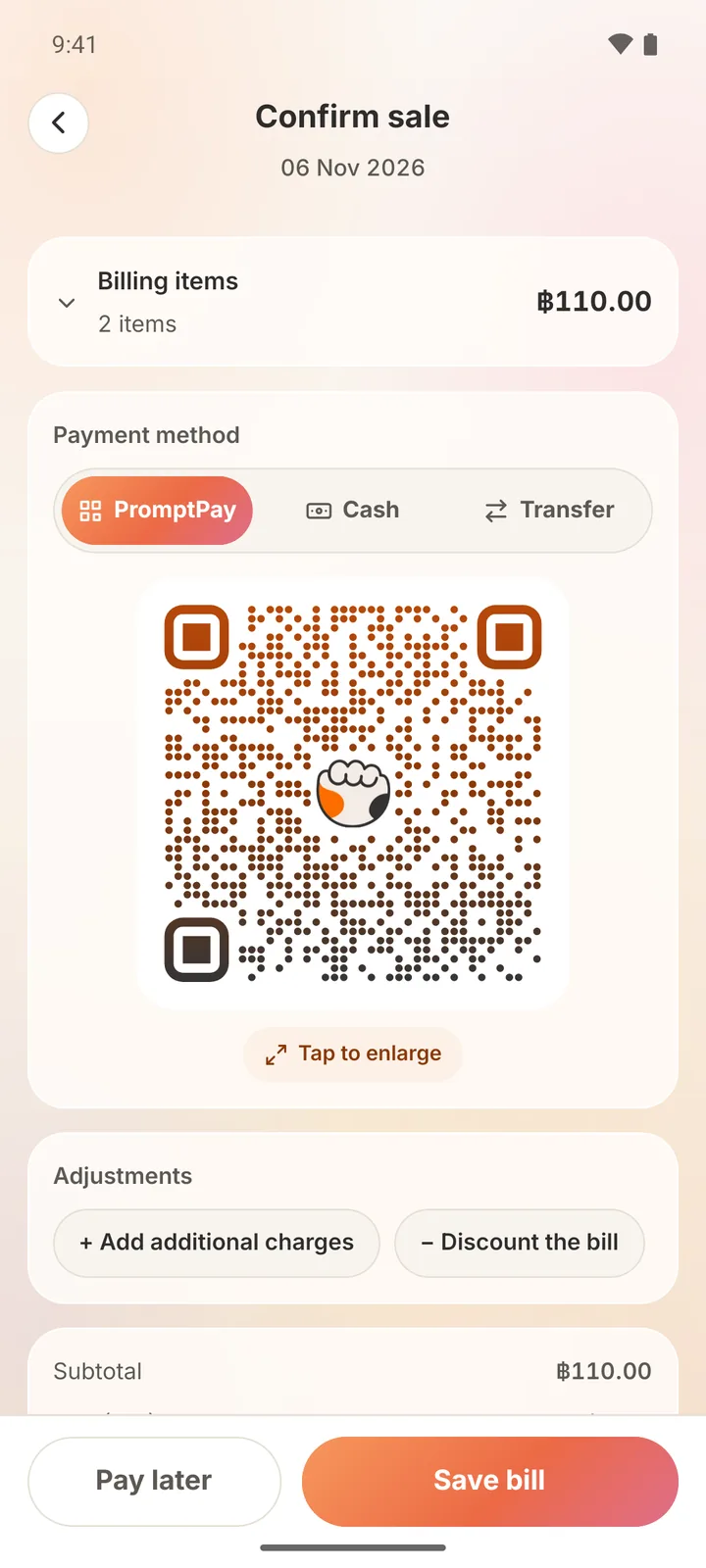
Choose PromptPay and a QR for the bill amount appears. Tap to enlarge it so the customer can scan it with their banking app. Check that the money has reached the shop’s account, then tap Save bill.
-
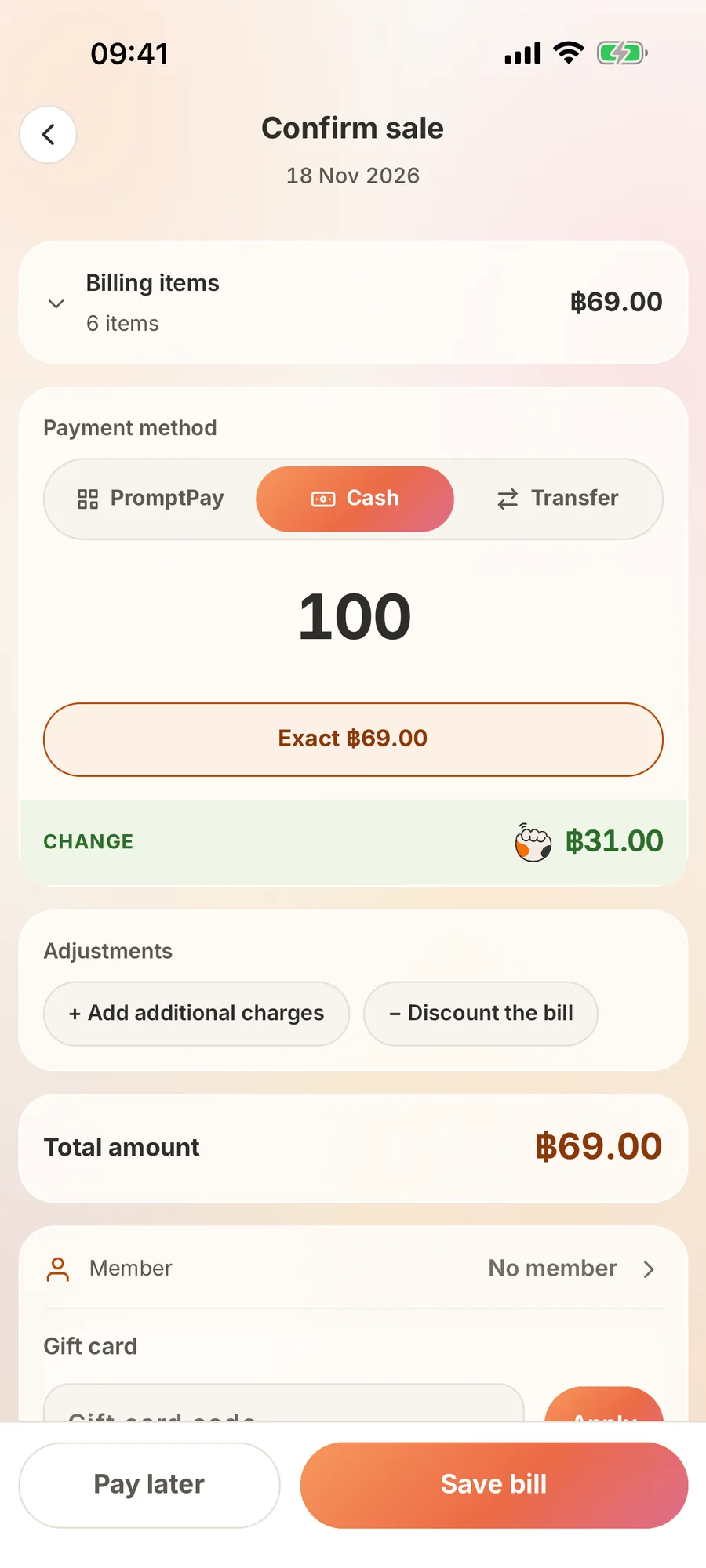
Choose Cash and enter what the customer handed you. The app shows the change at once. If they paid the exact amount, tap Exact. Then tap Save bill.
-
-
Stage 3Done 0/0
Packing up
-
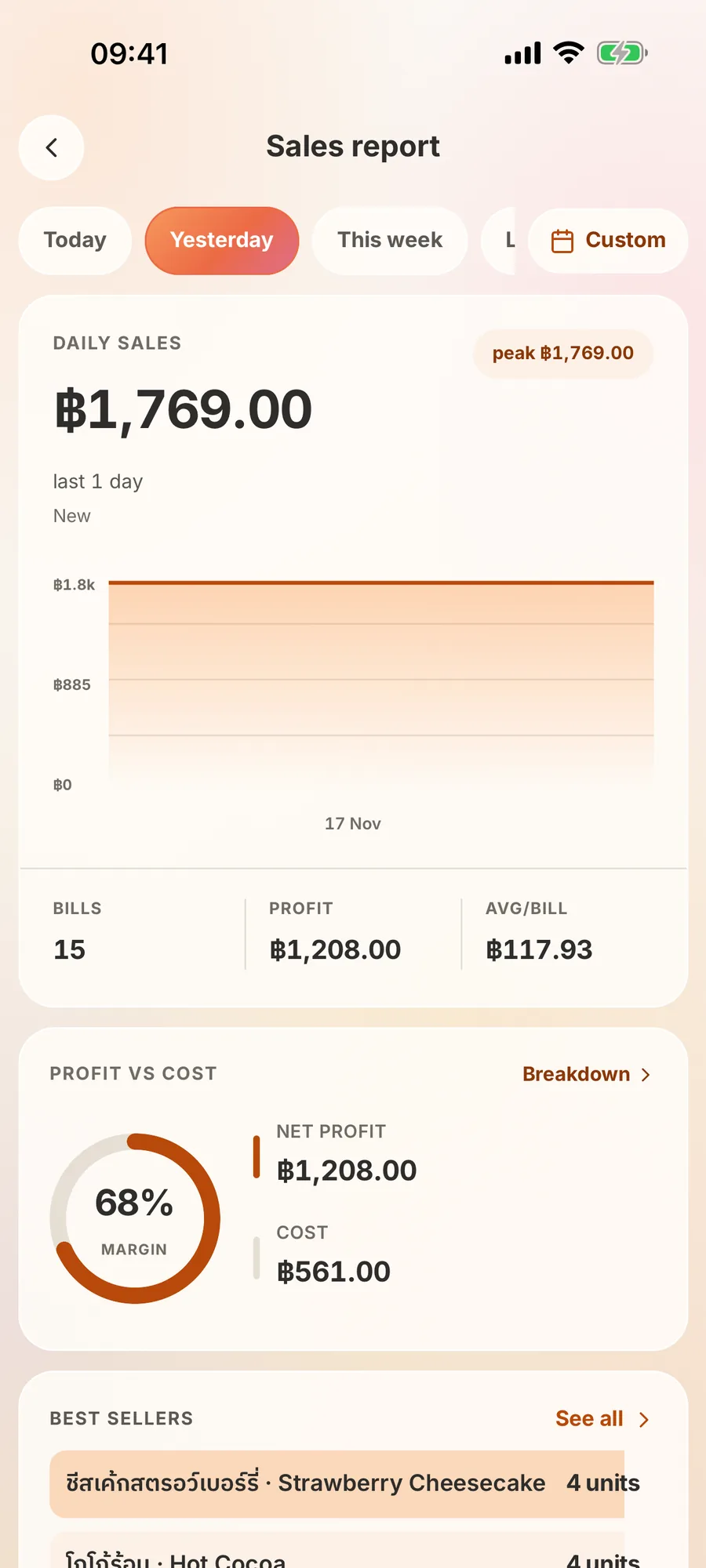
In Settings, choose Reports, then Today to see today’s sales, number of bills, profit and average per bill. If Privacy mode is on, turn it off first to see the figures.
-
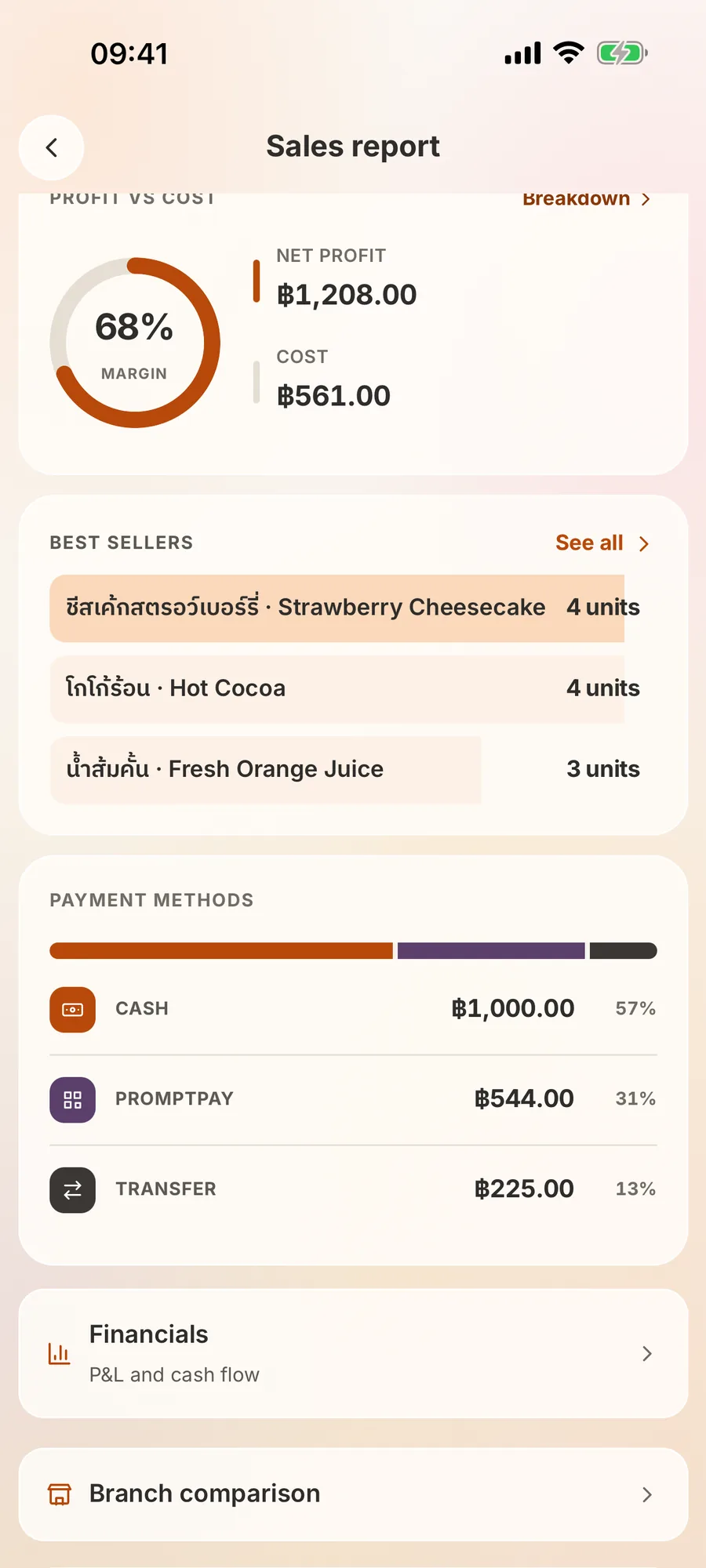
Scroll down the same report. The Payment methods card splits out cash, PromptPay and transfers. Count the cash you took against the cash total, and check the PromptPay total against the shop’s banking app.
-
-
Stage 4Done 0/0
Before you head out the next day
-
In the report, tap See all on the Best sellers card. The app sorts items by units sold or by sales. Use it to judge what to bring more or less of the next day.

-


Which shops should start this playbook
If your shop often runs into any of the problems on the right, work through this one stage at a time, starting with the one-time setup.
- You sell alone and move to a new spot every day
- You keep sales in a notebook or in your head
- Customers ask if they can scan to pay
- You do not want to carry a POS terminal and cash drawer around
Where to see the results in the app
- Sales reportThe day’s sales, the number of bills, and cash and PromptPay shown separately
- Sales by itemHow many of each item sold, so you can plan what to bring the next day
- SettingsShop mode, Privacy mode and Screen lock
Common mistakes
- Forgetting Privacy mode is onReport figures show as ฿••••. Turn it off in Settings before you check your sales. Prices at checkout and on receipts are always real.
- Saving the bill before the PromptPay money arrivesCheck that the money is in the shop’s account, then tap Save bill.
- Cannot find the Warehouse or Branches menuStall mode hides them. Turn on Show every menu on the Shop mode screen.
Read more
Start the first step in the app today
New shops get Party free for 30 days, with no card needed. After that, the shop moves to Go on its own.
Stuck on a step? Message the team on LINE.