
A shop with staff Know who did what, even when you are away
Each staff member has their own account and can do only what their role allows. Discounts over the limit wait for your approval, and the app shows who sold how much. Every step points to a real screen in the app. Tick each one off as you go.
- Good for
- CaféRestaurantRetail
- Plan
- Party plan
- Features used
- Staff reportStaff permissionsApproval requests
Stages in this playbook
11 things to do
Done 0 of 11 steps0% done, steps left: 11)
-
Stage 1Done 0/0
One-time setup
-
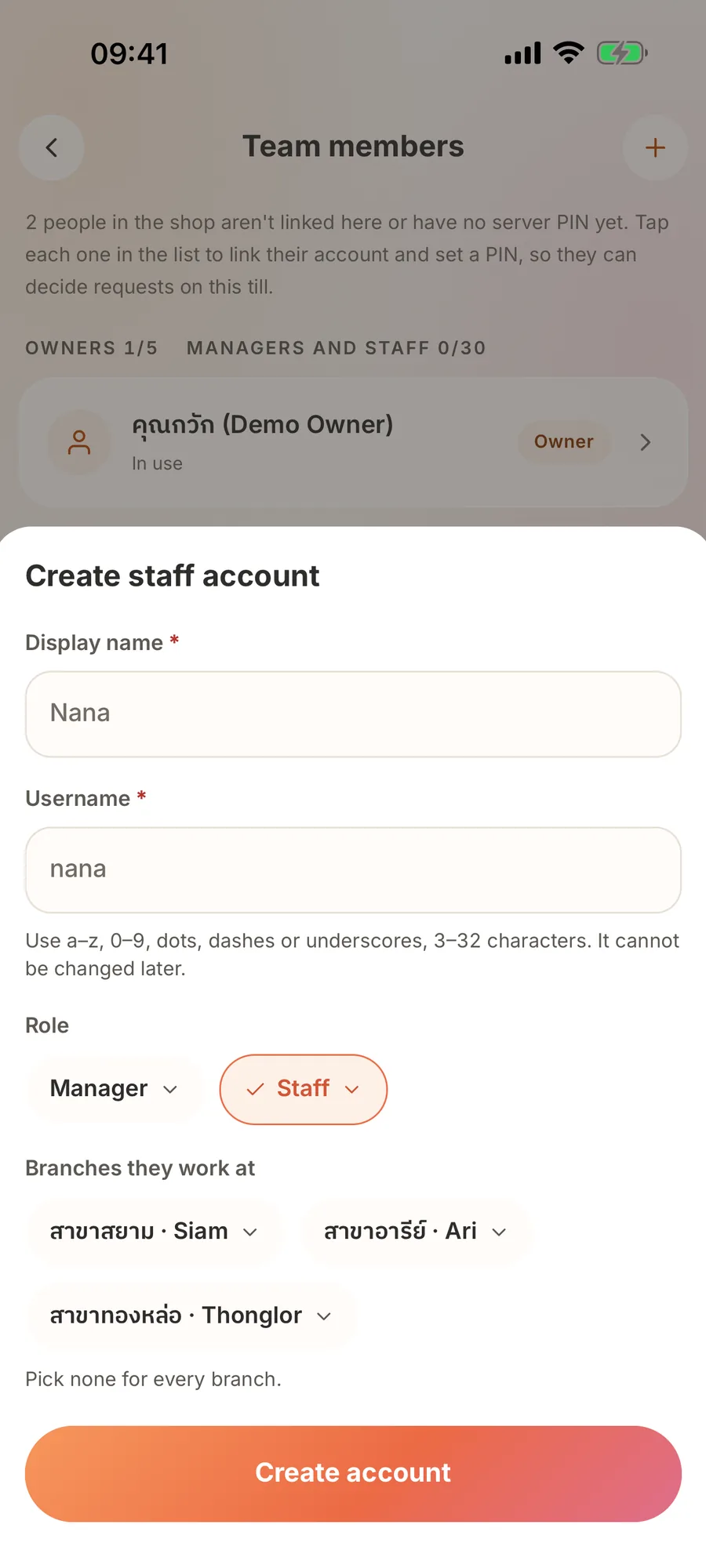
In Settings, choose Team members and tap Create staff account. Enter a display name and a username, then pick the Manager or Staff role and the branch they work at. Pick no branch and they work at every branch.
-
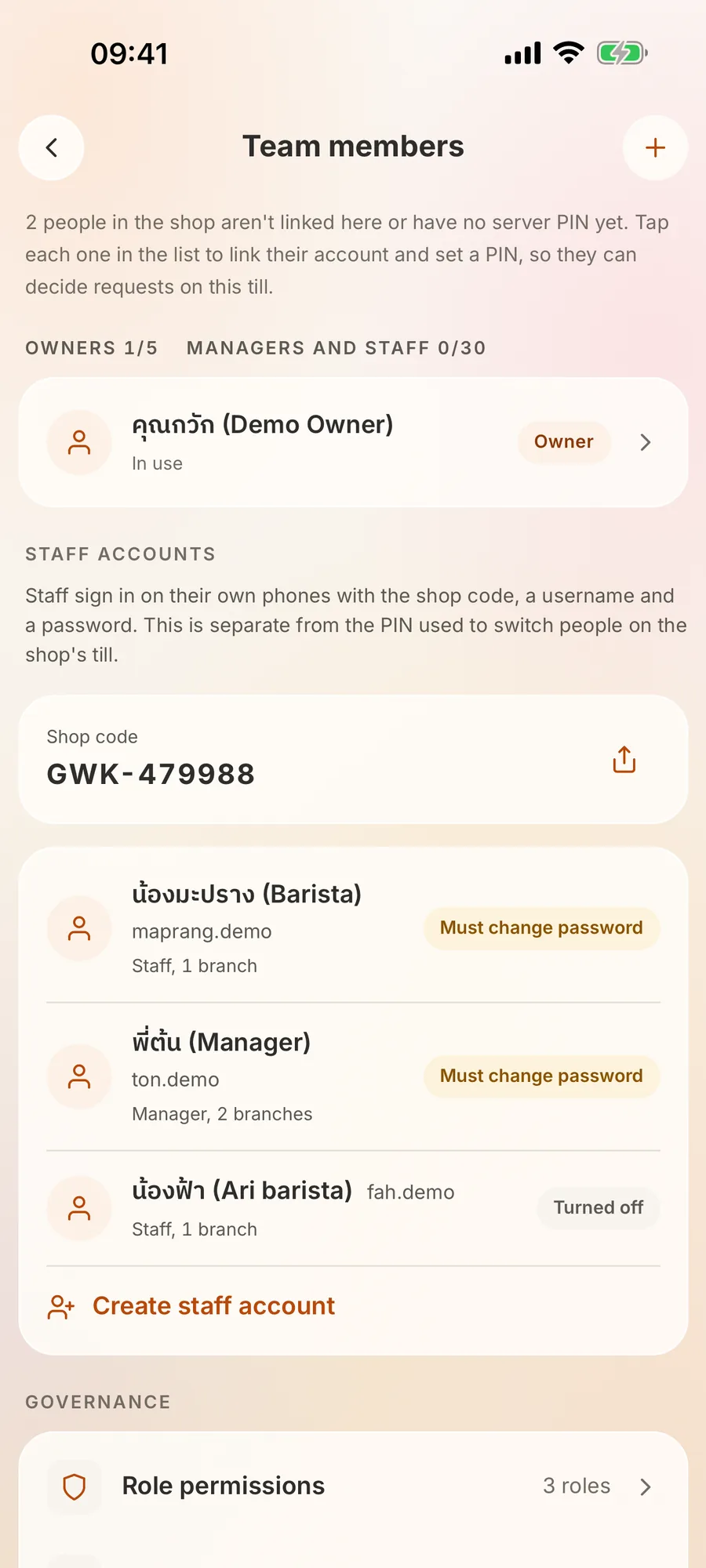
Once the account is created, the app shows a temporary password one time. Share the shop code, username and temporary password with the staff member. They sign in on their own device from the Staff tab, then set their own password right away.
-
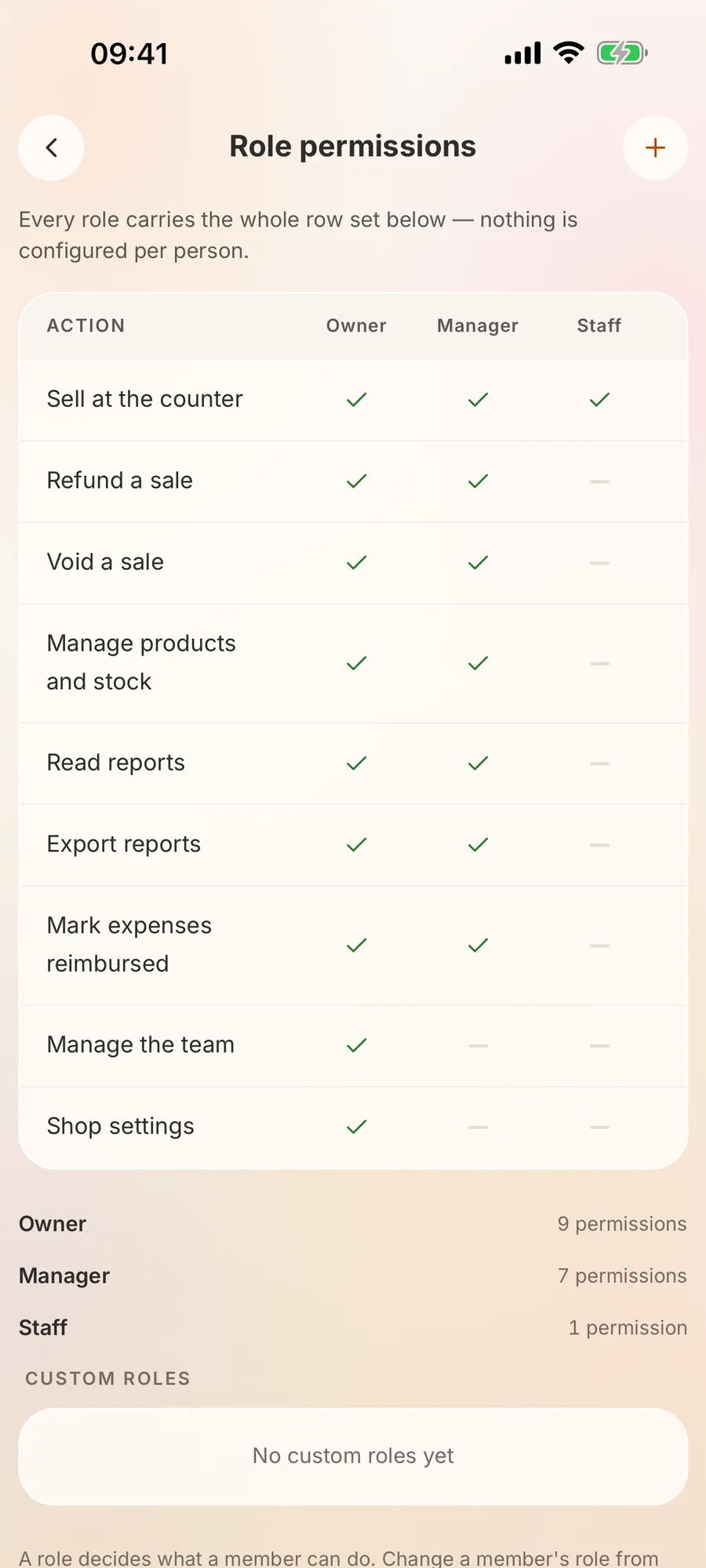
On the Team members screen, choose Role permissions. Staff can sell at the counter. Managers can also refund, void bills, manage products, and view and export reports. Managing the team and the shop settings stays with the owner.
-
On the Role permissions screen, tap +, name the role, for example Shift lead, and tick only the permissions you want to give. Change each person’s role on the Team members screen.

-
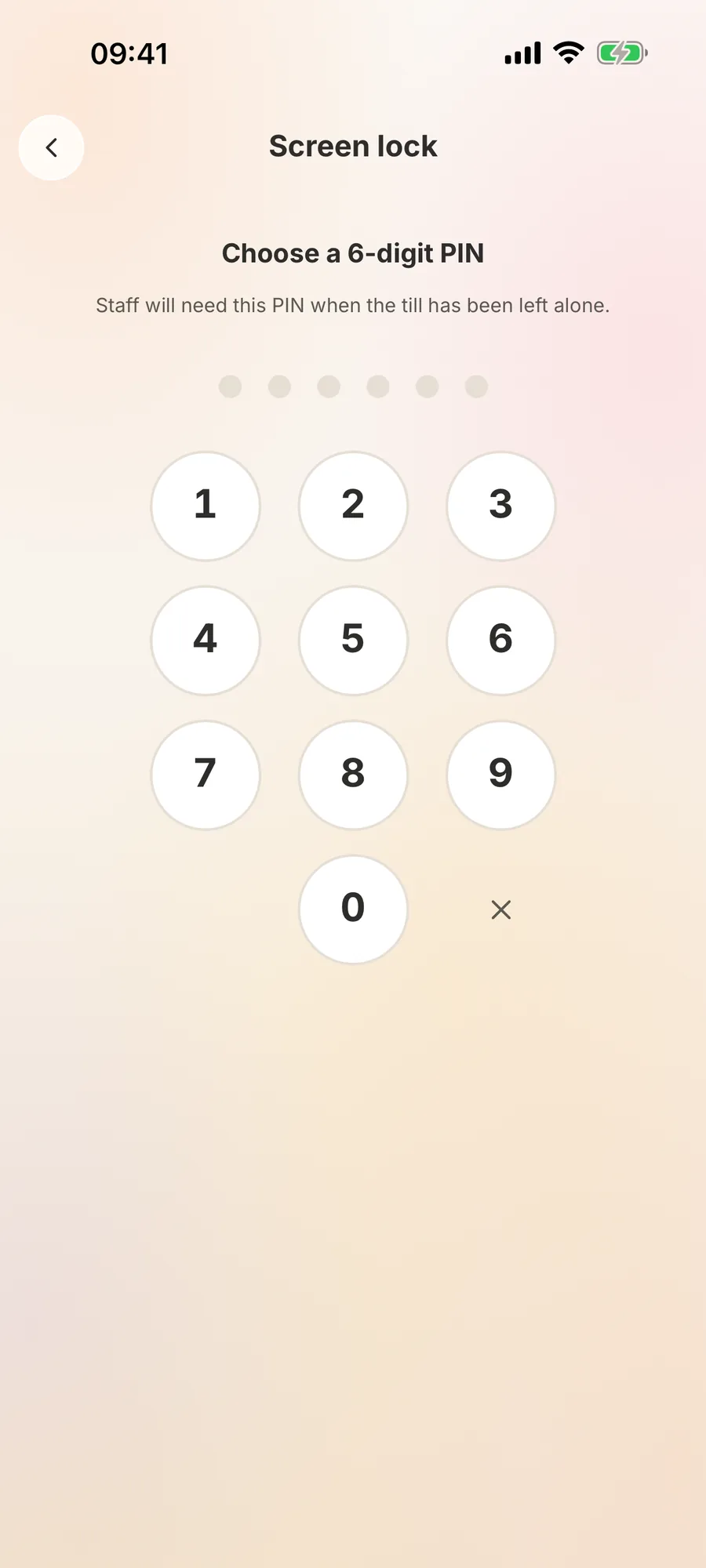
In Settings, choose Screen lock and set a 6-digit PIN. When a device is left alone, it needs the PIN, a fingerprint or a face before anyone can use it again.
-
-
Stage 2Done 0/0
During the day
-
If a staff member gives a discount over the shop’s limit or adjusts stock, the app sends it as a request. The owner or a manager can open it on the Approvals screen from any device and see what was asked for, how much, and who asked.

-
Tap the tick to approve or the cross to decline. A declined discount is taken off the bill. A request made from your own account must be decided by someone else. Every decision is recorded in the Activity log.
-
-
Stage 3Done 0/0
Every week
-
In Settings, choose Staff report. Pick Today, Yesterday, This week or another range to see each person’s sales, number of bills and share. You can export it as Excel or PDF.

-
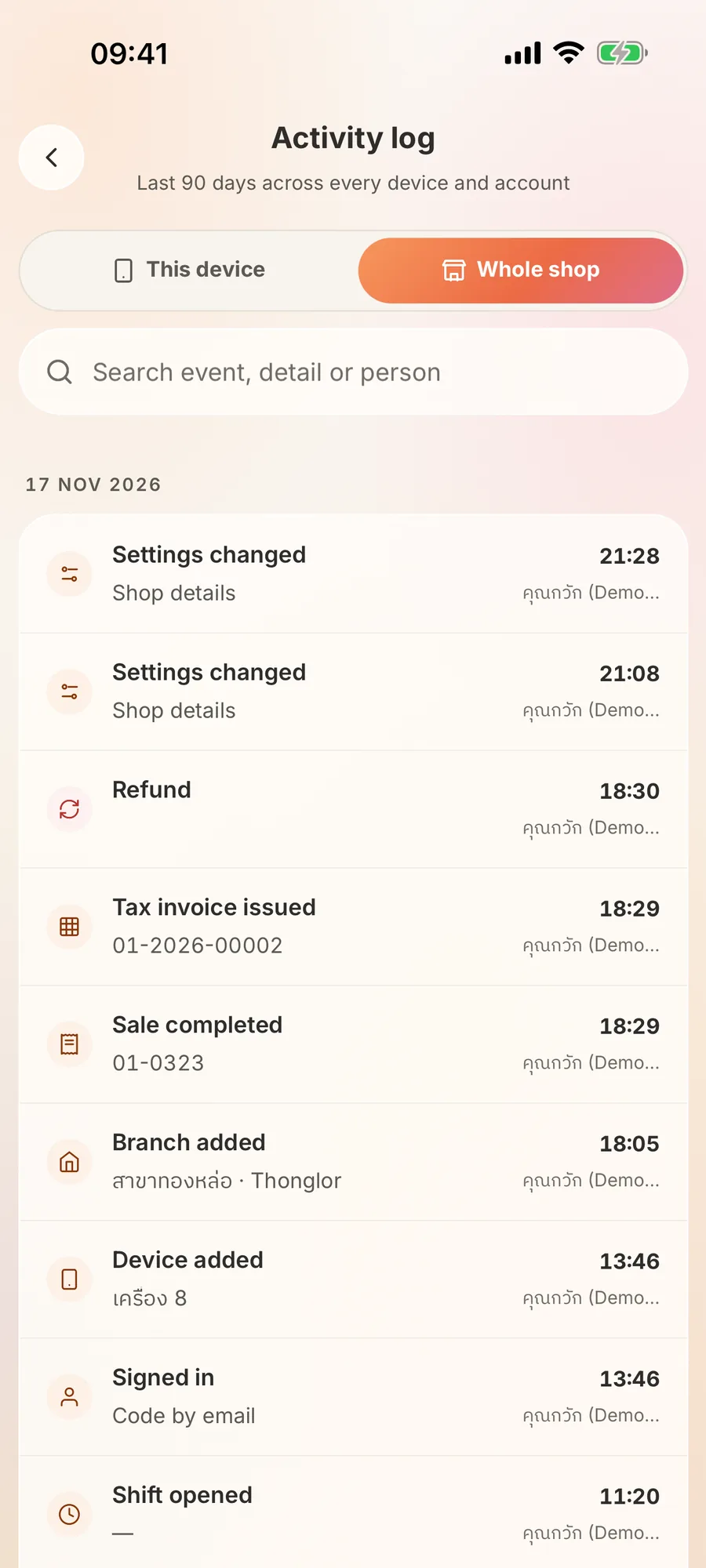
In Settings, choose Activity log, then Whole shop to see every device and every account: who signed in, opened or closed a shift, or cancelled an order, and when. You can search by event, details or the person’s name.
-
-
Stage 4Done 0/0
When the team changes
-
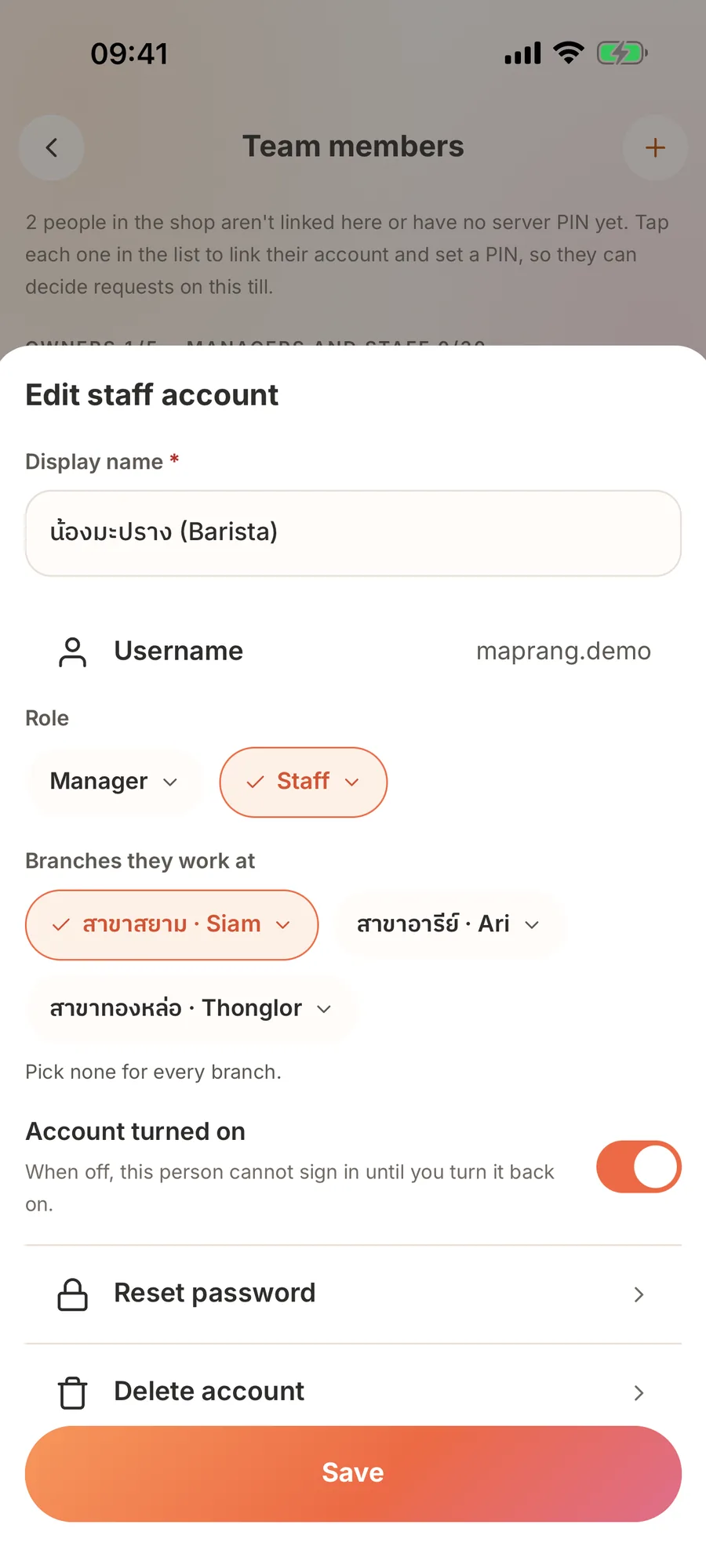
Tap their name on the Team members screen and switch off Account turned on. They cannot sign in until you switch it back on. If they are not coming back, you can delete the account. Their bills and history all stay.
-
On the Edit staff account screen, tap Reset password. The old password stops working at once, and you get a new temporary password to give them. They set their own password when they sign in.
-


Which shops should start this playbook
If your shop often runs into any of the problems on the right, work through this one stage at a time, starting with the one-time setup.
- When you are away, you cannot tell who sold what
- All your staff share one account
- Discounts go out without anyone knowing
- People who have left can still get into the shop’s app
Where to see the results in the app
- ApprovalsDiscounts and stock adjustments waiting for your decision
- Staff reportEach person’s sales, number of bills and share
- Activity logWho did what, on which device, and when
Common mistakes
- Letting everyone use the owner’s accountReports cannot tell who made each sale, and anyone can change any shop setting.
- Making everyone a managerManagers can refund and void bills. Give the role only to people who run the shop for you.
- Forgetting to turn off the account of someone who leftThe account can still sign in. Switch it off on their last day.
Read more
Start the first step in the app today
New shops get Party free for 30 days, with no card needed. After that, the shop moves to Go on its own.
Stuck on a step? Message the team on LINE.